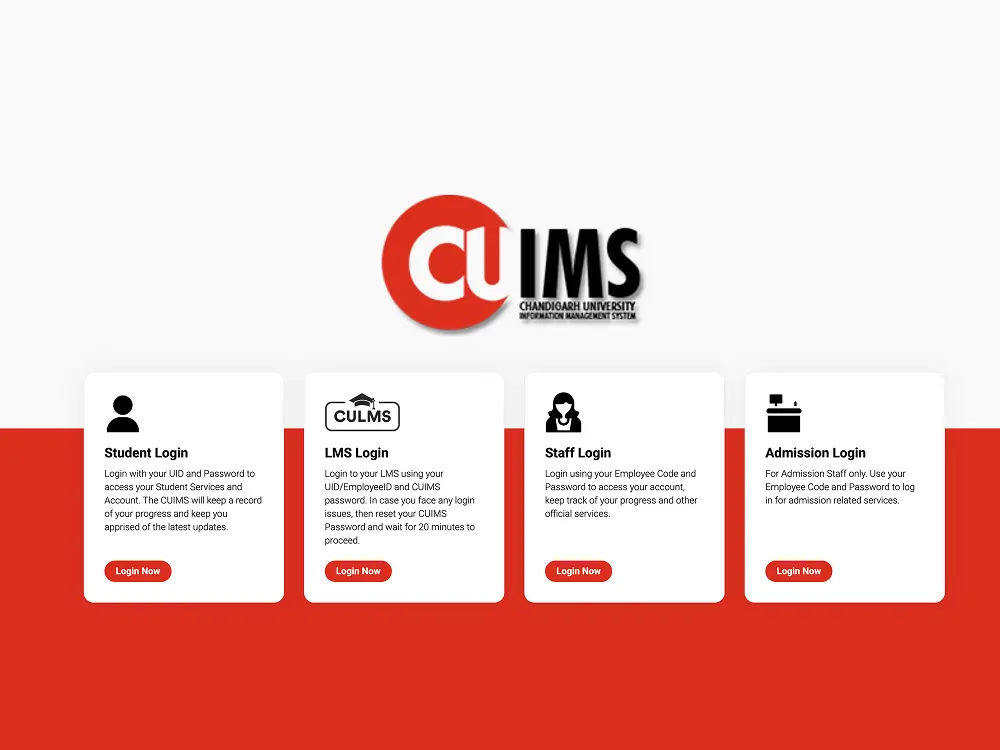
CUIMS (Chandigarh University Information Management System) is the official student and staff portal for Chandigarh University. It handles everything from attendance and results to fee payments and LMS access — all from a single login.
This guide covers the complete CUIMS login process for students, staff, and LMS users. You will also find steps for password reset, result access, and fixes for the most common login errors.
Related Articles: UMID Card Login Guide | Shala Darpan Login Guide | HRMS Login Guide | Aadhaar Card Download Guide | DigiLocker Login Guide
What is CUIMS?
CUIMS is Chandigarh University's centralized digital management system, available at uims.cuchd.in. Every enrolled student and employee gets a unique login to access academic and administrative services.
| Feature | What You Can Do |
|---|---|
| Academic Dashboard | View grades, course details, and semester records |
| Attendance Tracking | Check real-time attendance across all subjects |
| Examination Management | Download admit cards, timetables, and results |
| Fee Payment | Pay fees and view full transaction history |
| LMS Access | Join online classes, download study materials, submit assignments |
| Hostel & Transport | Manage hostel room and campus transport services |
| Notifications | Receive university announcements and alerts instantly |
Both students and staff use the same portal URL. The login type determines which dashboard loads after authentication.
CUIMS Student Login
The student login uses your UID (University Identification Number) — a 9-digit number assigned at admission. You can find it on your admission letter, fee receipt, or registration confirmation.
Open the Official Portal
Visit uims.cuchd.in in your browser. Use Google Chrome or Mozilla Firefox for best compatibility — avoid Internet Explorer.
Select Student Login
On the homepage, click "Student/Parent Login". This opens the student authentication form.
Enter Your UID and Password
Type your UID (e.g., 2024BBA1234) in the username field. Enter your CUIMS password — first-time users often find their default password is their date of birth in DDMONYYYY format (e.g., 01JAN2002).
Complete the Captcha
Solve the captcha verification shown on screen. This step confirms you are not a bot and is required to proceed.
Click Login
Press the "Login" button. You will land on your student dashboard with access to all academic services.
Pro Tip: If you see a blank screen after login, clear your browser cache with
Ctrl + Shift + Deleteand reload the page.
CUIMS Staff Login
Faculty and administrative staff use their Employee Code instead of a UID. The portal URL is the same.
Visit the CUIMS Portal
Go to uims.cuchd.in and click "Staff Login" on the homepage.
Enter Employee Credentials
Type your Employee Code in the username field and your CUIMS password in the password field.
Complete Captcha and Login
Solve the captcha and click "Login". Your staff dashboard will load with course management, attendance recording, and grade entry tools.
CUIMS LMS Login
The CUIMS LMS (Learning Management System) is where students access live classes, recorded lectures, quizzes, and assignment submissions. It runs through the same CUIMS portal but opens a dedicated LMS interface.
Go to the CUIMS Portal
Open uims.cuchd.in and select "LMS Login" from the login options on the homepage.
Enter Your UID or Employee ID
Students enter their UID; staff enter their Employee ID. Use the same CUIMS password you use for the main portal.
Access Your LMS Dashboard
After login, your LMS dashboard shows all enrolled courses. Click any course to view materials, join live sessions, or submit assignments.
Access via Blackboard (Alternative)
Chandigarh University also integrates with Blackboard LMS at cuchd.blackboard.com. Use the same CUIMS credentials to log in there if your faculty uses Blackboard for course delivery.
Documents Required for First-Time Registration
New students do not self-register — CUIMS credentials are issued automatically upon admission. Keep these details available to retrieve or reset your account:
| Document | Purpose |
|---|---|
| Admission Letter | Contains your UID |
| Fee Receipt | Alternative source for UID |
| Registered Mobile Number | Used for OTP during password reset |
| University Email (cumail.in) | Receives password reset link |
| Date of Birth | Often used as default first-time password |
CUIMS Password Reset
Forgot your password? Use the built-in reset option — no need to visit the campus helpdesk.
Open the Login Page
Go to uims.cuchd.in and click "Forgot Password" below the login form.
Enter Your UID and Registered Contact
Type your UID and either your registered mobile number or university email address (@cumail.in).
Receive OTP or Reset Link
The system sends an OTP to your mobile or a reset link to your email. Check both if one does not arrive within 2–3 minutes.
Set a New Password
Enter the OTP or click the reset link, then create a new password. Use at least 8 characters with a mix of letters and numbers.
Wait Before Logging In
After resetting, wait 15–20 minutes before attempting to log in. The system takes time to sync the new credentials across all services.
Note: If the reset email does not arrive, check your spam folder. For persistent issues, call the CUIMS helpline at 1800 1212 88800 (toll-free) or email helpdesk@cuchd.in.
Common Problems and Fixes
| Problem | Solution |
|---|---|
| Invalid credentials error | Double-check UID format and ensure Caps Lock is off |
| Account locked | Wait 24 hours or contact the IT helpdesk to unlock |
| Website not loading | Clear browser cache and cookies, then retry |
| Captcha not appearing | Disable browser extensions or switch to Chrome/Firefox |
| LMS shows blank page | Log out, clear cache, and log back in via LMS Login option |
| Password reset OTP not received | Check spam folder; verify mobile number is registered |
| Result not visible | Results are uploaded by faculty — check back after the official result declaration date |
CUIMS Mobile App
The CUIMS mobile app lets students manage their university life without opening a browser. It is available for both Android and iOS.
- Search "CUIMS" or "CU LMS" on Google Play Store or Apple App Store
- Log in with the same UID and password used on the web portal
- Check attendance, timetable, and fee dues from the home screen
- Receive push notifications for announcements and result updates
- Pay fees directly through the app using UPI or net banking
- Access LMS materials and submit assignments on mobile
Conclusion
CUIMS login is the gateway to every academic service at Chandigarh University — from attendance and results to LMS classes and fee payments. Use uims.cuchd.in as your only login point and keep your UID and password secure. If you hit login issues, the troubleshooting table above covers the most common errors. For account-level problems that self-service cannot fix, the CUIMS helpline at 1800 1212 88800 is the fastest resolution path.