

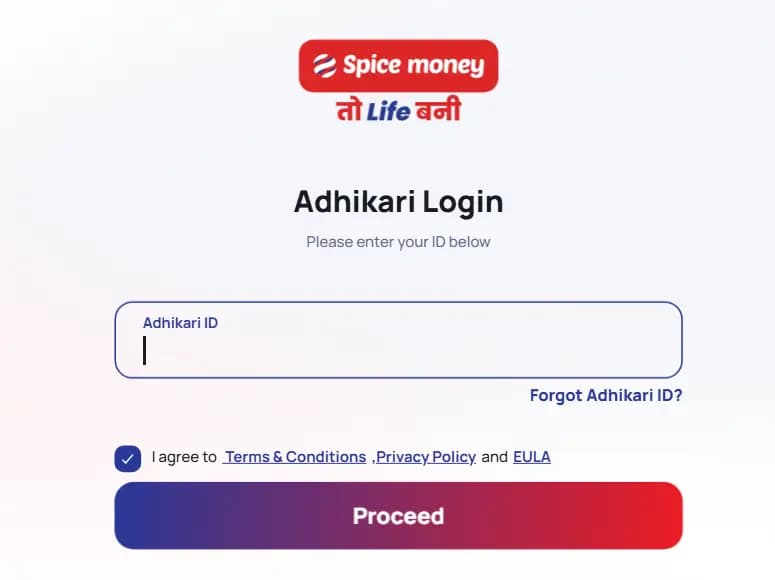
Spice Money login allows certified banking agents (Adhikaris) to access the official B2B web portal at b2b.spicemoney.com or use the Spice Money mobile app for AePS cash withdrawals, money transfers, micro-ATM transactions, and utility bill payments. Over 1.6 million registered Adhikaris and CSC operators use this platform to deliver doorstep financial services across rural India.
Related Articles: AirtelTez Retailer Login | CSC Digital Seva Login Guide | Sahaj Portal Registration & Login | Aadhaar Card Download Guide
What is the Spice Money B2B portal
Spice Money is one of India's largest rural fintech and assisted financial services networks, founded by Dilip Modi and operating as a subsidiary of DiGiSPICE Technologies. It bridges the banking gap in semi-urban and rural areas by turning local shop owners into digital banking agents known as Adhikaris.
The Spice Money B2B portal (b2b.spicemoney.com) is a secure banking correspondent platform operated by Spice Money Limited under RBI and NPCI guidelines. Certified Adhikaris and CSE VLEs use it to provide AePS cash withdrawals, IMPS money remittances, micro-ATM card transactions, BBPS utility bill payments, and IRCTC train ticket booking to under-banked citizens while earning transaction commissions.
Every merchant login session requires two-factor biometric authentication (2FA) alongside daily identity verification before any financial transaction can be processed.
Official Spice Money login portal and download links
Always access Spice Money through verified official links to protect your merchant wallet, customer biometric tokens, and transactional records:
| Channel | Official link / source | Platform | Purpose |
|---|---|---|---|
| B2B Web Login | b2b.spicemoney.com | Web (Chrome / Edge) | Desktop agent login, AePS, ledger and reports |
| Alternate Portal | adhikari.spicemoney.com/login | Web (PC / Laptop) | Backup merchant login console |
| Corporate Website | spicemoney.com | Web (All browsers) | Company info, partner inquiries, new onboarding |
| Android App | Google Play Store (Spice Money Adhikari) | Android | Mobile AePS banking and point-of-sale |
| RD Service Drivers | Mantra / Morpho official portals | Windows and Android | Aadhaar fingerprint scanner drivers |
| Adhikari Certificate | B2B Portal (Profile > Certificate) | PDF Download | Official BC shop certificate |
How to Login on Spice Money Web Portal
To complete a Spice Money login on a PC or laptop, open the official portal b2b.spicemoney.com in Google Chrome, enter your Adhikari User ID and password, solve the CAPTCHA, and authenticate with your biometric 2FA scanner. Make sure the RD Service driver is active before login.
Step 1: Open the official B2B login URL
Launch Google Chrome, Microsoft Edge, or Firefox and visit b2b.spicemoney.com. Confirm the browser address bar shows a secure HTTPS padlock issued to Spice Money Limited.
Step 2: Enter your Adhikari credentials
Type your registered Agent User ID (commonly prefixed with SDL followed by your numeric code) and your account password.
Step 3: Complete the CAPTCHA
Enter the alphanumeric security text shown in the captcha image to verify your session is not automated.
Step 4: Perform 2FA biometric authentication
Following NPCI directives, place your registered thumb or finger on your connected USB biometric scanner (Morpho, Mantra, or SecuGen) for daily merchant verification. For new device verification, enter the 6-digit OTP sent to your registered mobile number.
Step 5: Access the merchant dashboard
Once verified, the portal opens your Adhikari workspace showing your Main Wallet balance, AePS Settlement Wallet, transaction statements, and quick-access service tiles.
How to Login on Mobile App
Step 1: Download the Spice Money app
Open the Google Play Store on your Android device and search for "Spice Money - Banking Agent App" (developed by Spice Money - Rural Fintech). Tap Install.
Step 2: Enter your credentials
Open the app, enter your registered Adhikari User ID and password, and tap Login.
Step 3: Set your security screen pattern
On first login, the app prompts you to create a screen pattern lock for quick secure access on future logins.
Step 4: Grant permissions and pair biometric device
Allow camera, location, and USB OTG permissions. Connect your biometric scanner using micro-USB or Type-C OTG and install the matching RD Service client (Mantra RD Service or Morpho SCL RD Service).
PC Biometric RD Service Driver Setup
For processing AePS cash withdrawals on a desktop browser, download and install the biometric RD Service drivers from the official manufacturer portals:
| Device | Download source | Setup steps |
|---|---|---|
| Mantra MFS100 | Official Mantra Softech download portal | Download Mantra RD Service (v1.0.8+) and MFS100 Driver (v9.2.0.0+). Run setup as Administrator and restart the PC. |
| Morpho MSO 1300 E3 | Official Idemia / Morpho RD Service portal | Download the Windows RD Service (HTTP/HTTPS). Extract ZIP, run setup.exe as Administrator. Verify MorphoRDService shows Running in Windows Services. |
| Chrome config | chrome://flags | Search "Allow invalid certificates for resources loaded from localhost", set to Enabled, and relaunch Chrome. |
New Adhikari Registration Guide
Follow these steps to register as a new Spice Money Adhikari (banking agent):
Step 1: Download the app and register
Install the Spice Money - Banking Agent App from the Google Play Store. Open it, tap "Join Spice Money", and enter your mobile number. Verify via OTP.
Step 2: Submit business and KYC details
Provide your shop address, PAN card number, and Aadhaar details. Link your bank account (savings or current account with Udyog Aadhaar / GST if applicable).
Step 3: Complete biometric or face verification
Verify your Aadhaar identity using a face scan through the Aadhaar Face RD app or a connected biometric fingerprint device.
Step 4: Distributor mapping and CPV activation
The system auto-maps a distributor based on your PIN code, or you can enter a known distributor ID. Once Contact Point Verification (CPV) is completed by a field representative at your shop location, your Adhikari ID is activated.
Approval typically arrives within 2 to 24 hours after CPV completion, after which you can log in to the B2B web portal and the mobile app.
How to Reset a Forgotten Spice Money Password
Step 1: Click the reset password link
On the b2b.spicemoney.com login page, click "Reset Password" or "Forgot Password" below the credential entry fields.
Step 2: Enter your User ID and registered mobile number
Input your Adhikari Agent ID (SDL...) along with the 10-digit mobile number linked to your account.
Step 3: Submit the OTP
Enter the 6-digit verification code received via SMS on your registered handset.
Step 4: Create a new password
Set a secure password of at least 8 characters combining uppercase, lowercase, numbers, and special symbols. Confirm the password to regain access.
Troubleshooting common login and biometric issues
| Error | Cause | Resolution |
|---|---|---|
| RD Service error / device not detected | Biometric driver stopped or USB port disconnected | Reinstall latest RD Service from manufacturer portal. Restart MorphoRDService or MantraRDService in Windows Services (services.msc). |
| 2FA biometric mismatch | Dry fingers, dusty sensor, or wrong operator | Clean scanner glass with a microfiber cloth. Ensure the registered Adhikari performs the scan. |
| Account locked | Incorrect password entered 3+ times | Wait 30 minutes for automatic release or use the Reset Password option. |
| White screen / page timeout | Outdated browser cache or blocked localhost | Clear browser cache (Ctrl + Shift + Delete). Enable localhost certificates in chrome://flags. Verify stable internet. |
| Transaction timeout / 999 error | NPCI gateway latency or bank server slowdown | Do not deduct cash again. Check Transaction History Report first to verify if the customer account was debited. |
Spice Money customer care and help support
If you face login issues, transaction failures, or need account assistance, contact Spice Money through these official channels:
| Support channel | Contact details |
|---|---|
| Primary customer care | +91 120 507 7786 |
| Alternate contact | +91 120 364 5645 |
| Complaints / grievance | +91 120 502 9428 |
| WhatsApp support | 9355726786 |
| Support email | customercare@spicemoney.com |
| Grievance email | grievances@spicemoney.com |
Pro Tip
Never share your Spice Money Adhikari password, transaction PIN, or SMS OTP with anyone, including individuals claiming to represent Spice Money customer support. Official representatives will never ask for your confidential authentication codes.